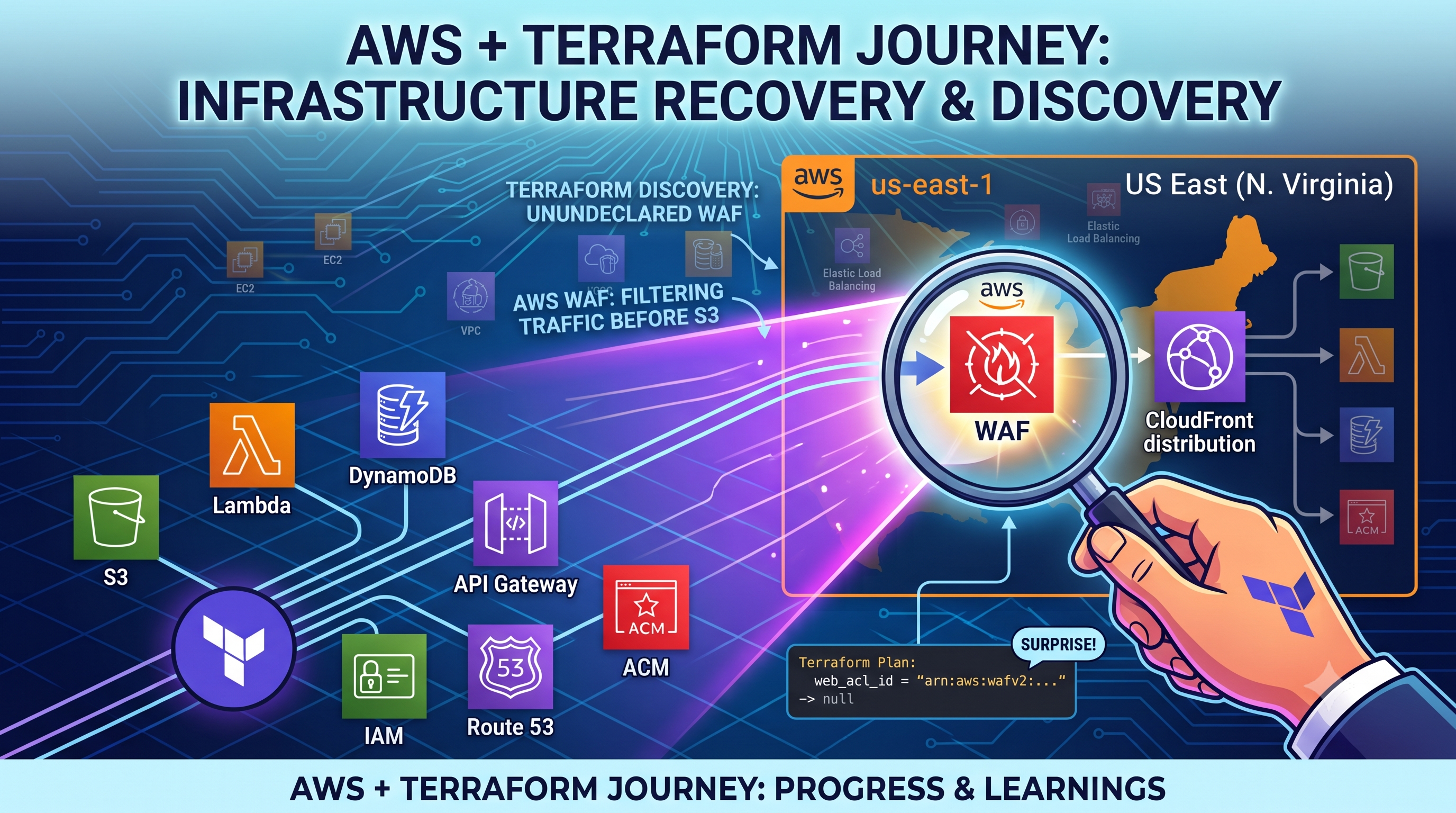
Day 14: AWS Cloud Resume Challenge
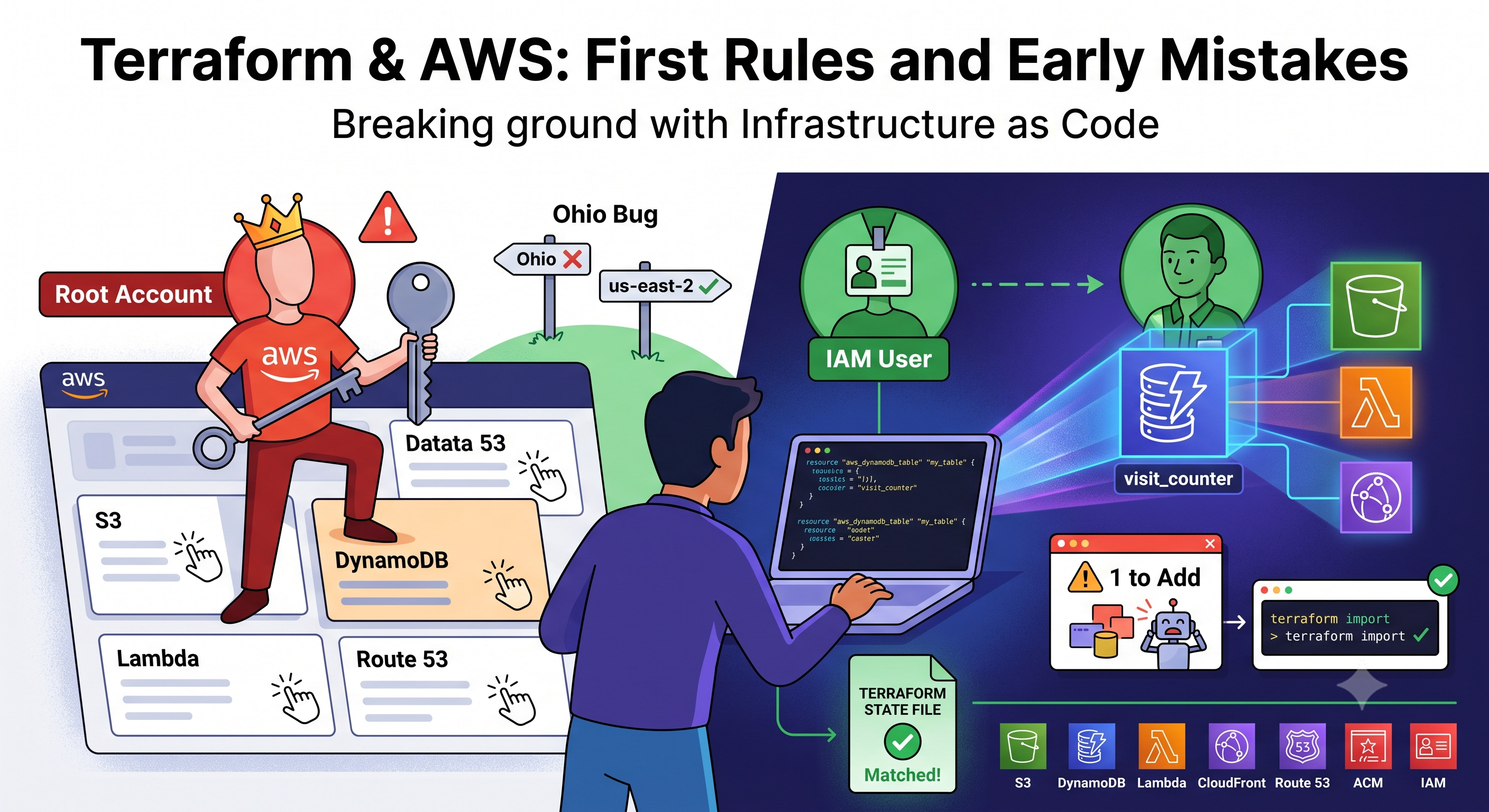
Breaking Ground on Terraform (and Tripping Over My Own Code Immediately)
It's been a while since my last post here. Life happened — I got pulled into prepping an internship application for a few weeks, and my "post daily" streak took a hit. But I'm back, and today I finally started the part of the Cloud Resume Challenge I'd been putting off: Terraform.
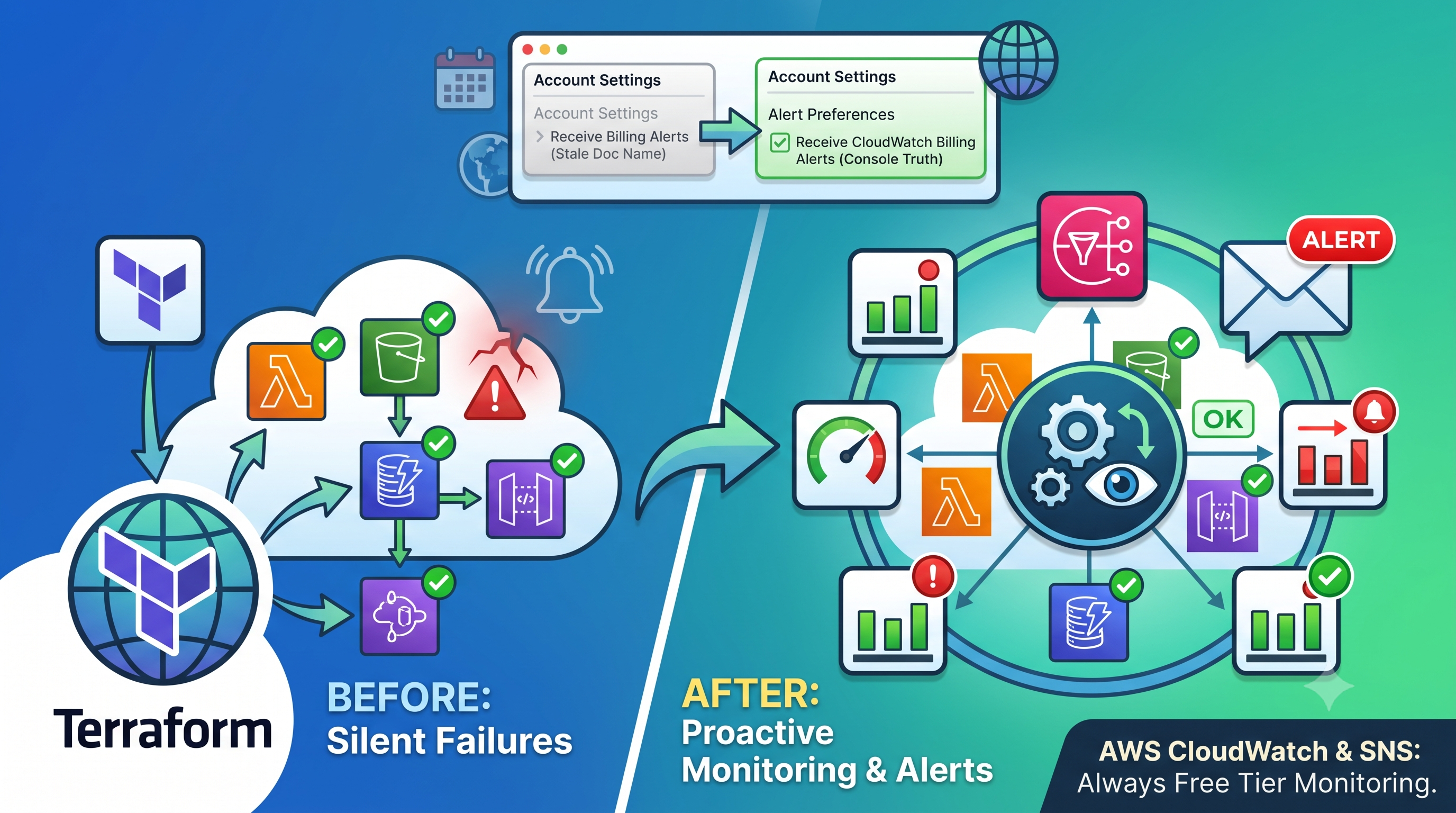
Until now, every single resource in my project — S3, CloudFront, Lambda, DynamoDB, API Gateway — was clicked together manually in the AWS console. It works, but it's not really how real infrastructure gets managed. If I lost my laptop tomorrow, or wanted to recreate this whole setup for a second project, I'd have to click through every single step again from memory. That's the exact problem Terraform solves — you write your infrastructure as code, and it becomes repeatable, version-controlled, and reviewable, instead of living only inside your click history.
First Rule I Learned: Don't Touch It With Root
Before writing a single line of Terraform, I stopped myself on something. I'd built this entire project using my AWS root user — the account owner, with unrestricted access to everything. That's fine for clicking around and learning, but handing that same root-level power to a tool that's about to start creating and destroying real infrastructure on my behalf felt like a bad idea.
So the very first thing I did wasn't Terraform code at all — it was creating a dedicated IAM user just for this project, with only the permissions it actually needs (S3, DynamoDB, Lambda, CloudFront, Route 53, ACM, and IAM access so Terraform can manage its own Lambda execution role). No console password, no login capability — just programmatic access keys, since this user only ever needs to talk to AWS through the CLI and Terraform, never through a browser.
The "Ohio" Bug
Here's a mistake that's a little embarrassing to admit, but it's exactly the kind of thing I want this blog to be honest about.
When I set up my new AWS CLI profile for this IAM user, it asked for a region. I typed "Ohio" Not us-east-2 — the actual region code — just the word "Ohio," because that's the human-readable name AWS shows you in the console.
Running a simple test command afterwards gave me this:
Could not connect to the endpoint URL: "https://sts.ohio.amazonaws.com/"
Turns out AWS doesn't know what "Ohio" means as a region identifier — it only understands region codes. The console shows you friendly names, but under the hood, everything is us-east-1, us-east-2, ap-south-1, and so on. A two-minute fix once I understood it, but a good reminder that the AWS console hides a layer of naming that CLI tools don't translate for you automatically.
Writing My First Resource Block
With the profile finally working, I wrote my first real Terraform resource — my DynamoDB table, since it doesn't depend on anything else I hadn't built yet:
resource "aws_dynamodb_table" "my_table" {
  name         = "visit_counter"
  billing_mode = "PAY_PER_REQUEST"
  hash_key     = "id"

  attribute {
    name = "id"
    type = "S"
  }
}
This is where I actually understood something I'd been fuzzy on — the difference between a partition key (hash_key) and a range key (sort key). My table only ever stores one item — a single running counter — so it only needs a partition key. A range key only matters when multiple items share the same partition key and need sorting or grouping, which isn't my situation here at all.
"1 to Add" — And a Small Moment of Panic
I ran:
terraform init
terraform plan
And got: "Plan: 1 to add."
My immediate thought was — wait, is this about to create a second, duplicate DynamoDB table next to my real one? Since my actual table already exists, created manually months ago, this felt like the wrong outcome.
Turns out, this is completely expected. Terraform's state file — the thing that tracks what it "knows" it manages — starts empty. As far as Terraform was concerned, my table didn't exist yet, because it never created it. The fix isn't apply — it's:
terraform import aws_dynamodb_table.my_table visit_counter
This tells Terraform "hey, this table already exists in AWS — go adopt it into your state instead of creating a new one." Running plan again afterwards showed a much smaller, safer diff instead of a full creation.
The Naming Mistake That Actually Taught Me Something
Right after the import, I hit an error trying to reference my table in outputs.tf:
Error: Reference to undeclared resource
A managed resource "aws_dynamodb_table" "visit_counter" has not been declared
This confused me at first, because my table's actual name in AWS is visit_counter — so why was Terraform saying it didn't exist?
Here's the thing that finally clicked: three separate names are floating around in Terraform, and I'd been treating them as one. There's the resource type (aws_dynamodb_table), there's my own internal label for referring to it in code (I'd called mine my_table), and there's the actual AWS-facing name ("visit_counter"). My outputs file was trying to reference aws_dynamodb_table.visit_counter — using the AWS name where Terraform expected my internal label. Once I pointed it at aws_dynamodb_table.my_table instead, it resolved immediately.
Small mistake, but it's the kind of thing that only really makes sense once you've been burned by it once.
One Tag Terraform Didn't Know About
After fixing the naming issue, terraform plan showed one more thing — a tag update:
~ tags = {
    - "Project" = "StaticWebsiteHosting" -> null
  }
My real table already had a Project tag attached from way back when I first built it — but my new Terraform code never declared it. Terraform's rule is simple: whatever's in AWS but not in your code gets flagged for removal, since your code is now treated as the source of truth. I added the tag back into my resource block so nothing would get silently stripped away, and ran plan one more time.
The Win
No changes. Your infrastructure matches the configuration.
That line felt genuinely satisfying. My real, already-running DynamoDB table is now fully described in code, safely imported, with nothing duplicated and nothing lost.
Up next: Doing the same thing for my S3 bucket — except this time, I already know what to watch out for.
#AWSCloudResumeChallenge #CloudComputing #DevOps #Debugging #Terraform #AWSDynamoDB #Day14BuildInPublic #InfrastructureAsCode
Comments
Join the discussionNo comments yet. Be the first to comment.